Category Archives: Apple

iPhone and Android Apps to Learn About and Report Invasive Species

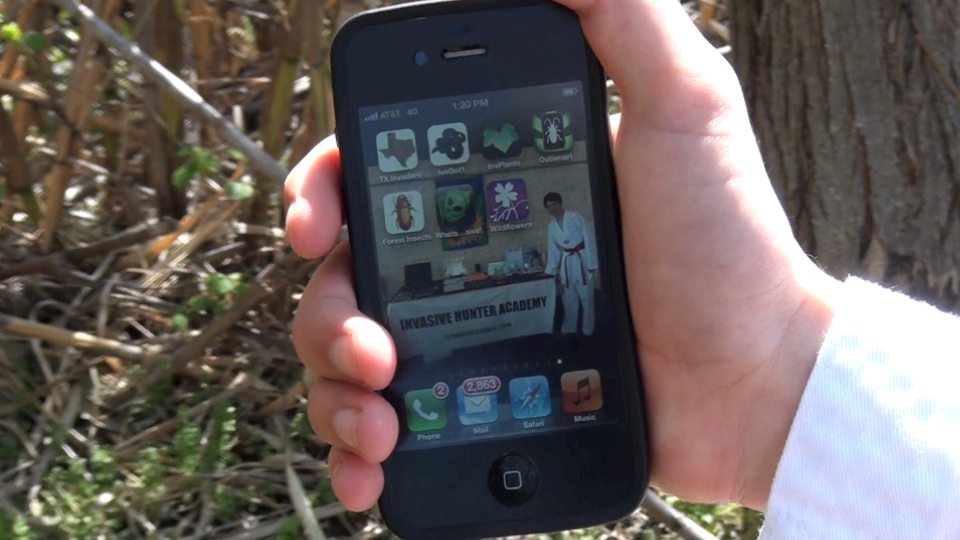
Invasive species apps on the iPhone

Invasive species apps on the iPhone

There are a lot of great mobile apps to learn about and report invasive species. Mr. Chuck Bargeron, technology directory for the University of Georgia’s Center for Invasive Species and Ecosystem Health (also known on the web as Bugwood), has created many apps about invasive species.

I had a chance to talk with Mr. Bargeron at the 2011 Texas Invasive Plant and Pest Conference:

In my How to Succeed in Hunting Invasive Species Without Really Trying blog post, I created a video about a fictional mobile app, but there are lots of great real invasive species apps for your mobile phone.

Here are some of the apps that Mr. Bargeron and the University of Georgia helped to create for citizen scientists on the hunt for invasive species. In the following listing, I’ve include links for you to download the iPhone (iPhone and iPad) and Android app versions and a brief description of the apps from their web pages:

  • EDDMapS West
    iPhone | Android
    EDDMapS is a national web-based mapping system for documenting invasive species distribution.
  • Forest Insect Pests
    iPhone | Android
    The photos present in this app are intended to help foresters, urban landscaping employees, or others working with trees recognize some of the common pest insects affecting trees in North America and understand their life cycles and how they damage trees.
  • IveGot1
    iPhone | Android
    Submit invasive species observations directly with your mobile device from the field. These reports are uploaded to EDDMapS and emailed directly to local and state verifiers for review.
  • Outsmart Invasive Species
    iPhone | Android
    The Outsmart Invasive Species project is a collaboration between the University of Massachusetts Amherst, the Massachusetts Department of Conservation and Recreation (MA DCR), and the Center for Invasive Species and Ecosystem Health at the University of Georgia.
  • What’s Invasive
    iPhone | Android
    One of the greatest dangers to natural areas is the spread of invasive species. This app accesses local lists created by National Park Service rangers and other professionals to show you top invasives species in your area.

These are some of the apps that I’ve tried out on my iPhone, but there are more out there too, including:

  • Texas Invaders (TX Invaders)
    iPhone | Android
    The Invaders of Texas Citizen Science program collects species observations from volunteer citizen scientists trained to use a specially developed Invasive Species Early Detection and Reporting Kit.

I’ll have a special blog post on this app for citizen scientists to report Texas Invasives soon. 🙂

Your friend,
Ben

Leave a comment

Filed under 2011 Texas Invasive Plant Conference, Android, Apple, Bugwood, Center for Invasive Species and Ecosystem Health, Chuck Bargeron, Citizen Scientist, EDDMapS West, Forest Insect Pests, Invasive Species, iPad, iPhone, IveGot1, Mobile app, Outsmart Invasive Species, Texas Invaders, University of Georgia, What's Invasive

How to Succeed in Hunting Invasive Species Without Really Trying

The video concerns a young, ambitious native plant defender who, with the help of the smartphone app, “How to succeed in hunting invasive species without really trying”, rises from a budding environmentalist to a fighting naturalist.

Commander Ben goes to high school

I have great news to share with you! I’ve been accepted into St. Michael’s Catholic Academy for high school in the fall. I’m very excited, since I’ve been studying hard and took the ISEE exam to get in.

Last year, the drama team at St. Michael’s put on a play, “How to succeed in business without really trying“. It was a musical comedy with lots of great student actors, and this got me thinking about making a fun video with invasive species that’s similar to the opening of the play.

I hope you enjoy this latest addition to my Battles with Invasive Species video series!

Your friend,
Ben

Leave a comment

Filed under Android, Apple, Battles with Invasive Species, High School, How to succeed in business without even trying, How to succeed in hunting invasive species without really trying, iPad, iPhone, ISEE, St. Michael's Academy, St. Michael's Catholic Academy

Vine and Twitter in Action at UT Austin

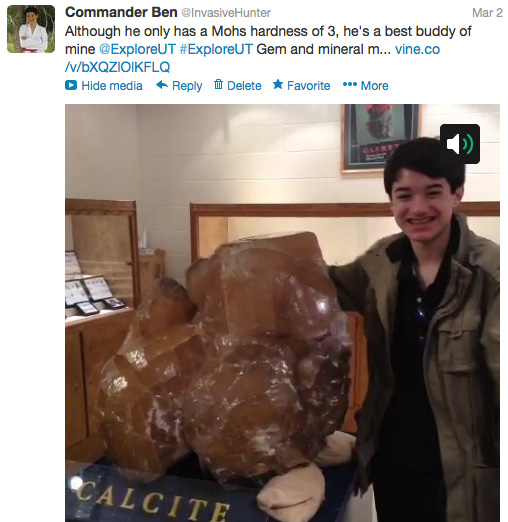
Using Vine and Twitter at UT Austin during Explore UT

Using Vine and Twitter at UT Austin during Explore UT

I didn’t think I’d get a chance to attend Explore UT this year, but I was able to visit UT Austin yesterday to listen to a few talks, enjoy a few exhibits, and be part of the event that they call the “biggest open house in Texas!”

I wanted to try out the new Vine iPhone app for creating short six-second videos for posting on my Twitter account, @InvasiveHunter.

Here’s how I used Vine to make short, looping videos with my tweets:

  1. Opened the Vine app on my iPhone.
  2. Aimed my iPhone camera at what I wanted to film.
  3. Held my finger on the touchscreen to create the video.
  4. When done, created a tweet with the video.
  5. Uploaded the video to both Vine and Twitter. (There’s also an option to upload it to Facebook.)

Tips on using Vine

  • Unless someone is filming talking about something, try to film different video segments on the same topic instead of just one continuous video. The different shots are more interesting and will keep people entertained.
  • Make sure to remember to take your finger off your phone when you’re done shooting the video, both off the touchscreen and definitely off your camera lens. (Not that it happened to me. 🙂 )
  • Remember that you can’t edit your video. Make sure that you get what you want when you film. If not, you can always start over.
  • One downside is that if you get a really great shot and a not so good one, and you need to start over, you lose your entire video, but that’s a minor thing.

This app is definitely very easy to use. With all the complicated mobile apps these days, it’s wonderful to have something so simple to use with Twitter.

I liked adding video to my tweets. You can use videos to convey more information than just a tweet or picture. It’s fun to create videos and watch videos from others too!

Here are a few of my tweets and Vine videos from yesterday:

Using Vine and Twitter at the UT Austin Jackson School of Geosciences

Using Vine and Twitter at the UT Austin Jackson School of Geosciences

Using Vine and Twitter at the UT Austin Texas Memorial Museum

Using Vine and Twitter at the UT Austin Texas Memorial Museum

Thanks @UTAustin for replying to one of my tweets during the Explore UT event:

UTAustin replies to InvasiveHunter tweet during Explore UT

UTAustin replies to InvasiveHunter Tweet during Explore UT

Videos from last year’s Explore UT event

Here are the blog posts and YouTube videos that I created from the 2012 Explore UT event:

Special Edition: Hot Science – Cool Talk this week

Don’t miss another fun event at UT Austin on Wednesday, March 6, at the next Hot Science – Cool Talks with Astrophysicist Dr. Jason Kalirai: Telescopes as Time Machines: The Legacy of Hubble & the Future through the James Webb Space Telescope.

It’s a special edition of the fun and educational presentations from the UT Austin Environmental Science Institute. Hope to see you there!

Tweet me your Vine videos

I also hope you have fun using Vine on your iPhone or iPod touch. Tweet me with your Vine videos @InvasiveHunter!

Your friend,
Ben

Leave a comment

Filed under Brackenridge Field Lab, Environmental Science Institute, Explore UT, Hot Science - Cool Talks, Hubble Space Telescope, Insecta Fiesta, iPhone, iPhone, Jackson School of Geosciences, James Webb Space Telescope, Jason Kalirai, Texas Memorial Museum, Tweet, Twitter, University of Texas, UT Austin, Vine

Commander Ben Talks About Invasive Species with Highland Lakes Master Naturalists

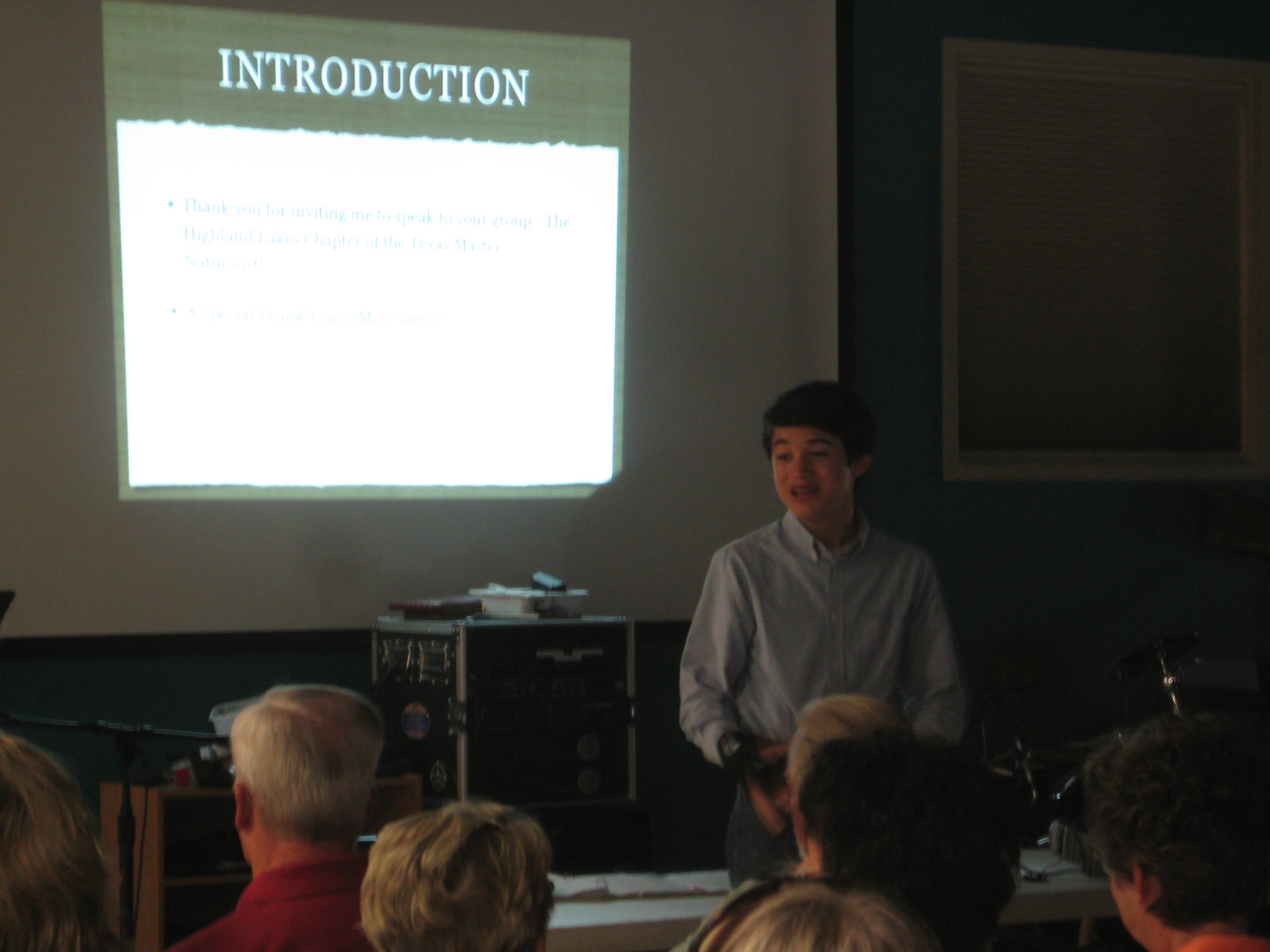
Thanks to my friend, Miss Sheryl Smith-Rodgers, I recently had the honor of speaking to the Highland Lakes Chapter of the Texas Master Naturalists.

Commander Ben & Sheryl Smith-Rogers, Texas Master Naturalist, Highland Lakes Chapter

I had such a fun time giving my invasive species presentation to their group! Everyone was so nice to me, and they were passionate about protecting native plants. Plus, after my talk, they gave me a great goodie bag with some things to help me during my adventures fighting invasives.

Top three invasives for conversation starters

To start the day, the master naturalists group treated my Mom and me to a delicious lunch at an Italian restaurant in Marble Falls. It was a lot of fun chatting with everyone over a great meal (I had a salad) and luckily there were no invasives in sight there.

I had a good time talking with people over lunch about three invasives that they really dislike:

  • Bastard Cabbage (Rapistrum rugosum) – One lady talked with me about how her property is being over run by Bastard Cabbage, and how she is going to put it down Indian Blanket seeds to try and stop it.
  • Malta star-thistle (Centaurea melitensis) – Another person talked with me about how one day his property was great, but then invasives struck! His property was overrun by Malta star-thistle, KR Bluestem, and Johnson grass with a touch of Salt cedar…and don’t forget that insidious cursing plant…Bastard Cabbage.
  • Japanese honeysuckle (Lonicera japonica) – Another lady talked about how Japanese honeysuckle is overrunning her property and how she and her husband just can’t stop it. It grows along their fence line so rapidly.

In my interview with biologist Mr. Darrell Hutchinson, “Austin Invasive Species Corps Aid Golden-Cheeked Warbler“, he talked with me about the web of interdependence in nature. I shared his insight with the group, and they found this analogy very interesting.

Next, I shared some information from my interview with with Dr. Jay Famiglietti, “Last Call at the Oasis: Interview series with Dr. Jay Famiglietti“, how he explained to me about the water, energy, and food nexus. They also found this really cool.

Presenting with my trusty iPad

After lunch we headed over to the group’s meeting area where we started to set up. I was amazed by how many naturalists were there! It looked like about 75 people, maybe more! I was really excited.

I had my iPad with me where I had prepared my presentation using the Keynote app. The group provided me with a great projector so that I could show my Keynote slides and videos on the screen behind me.

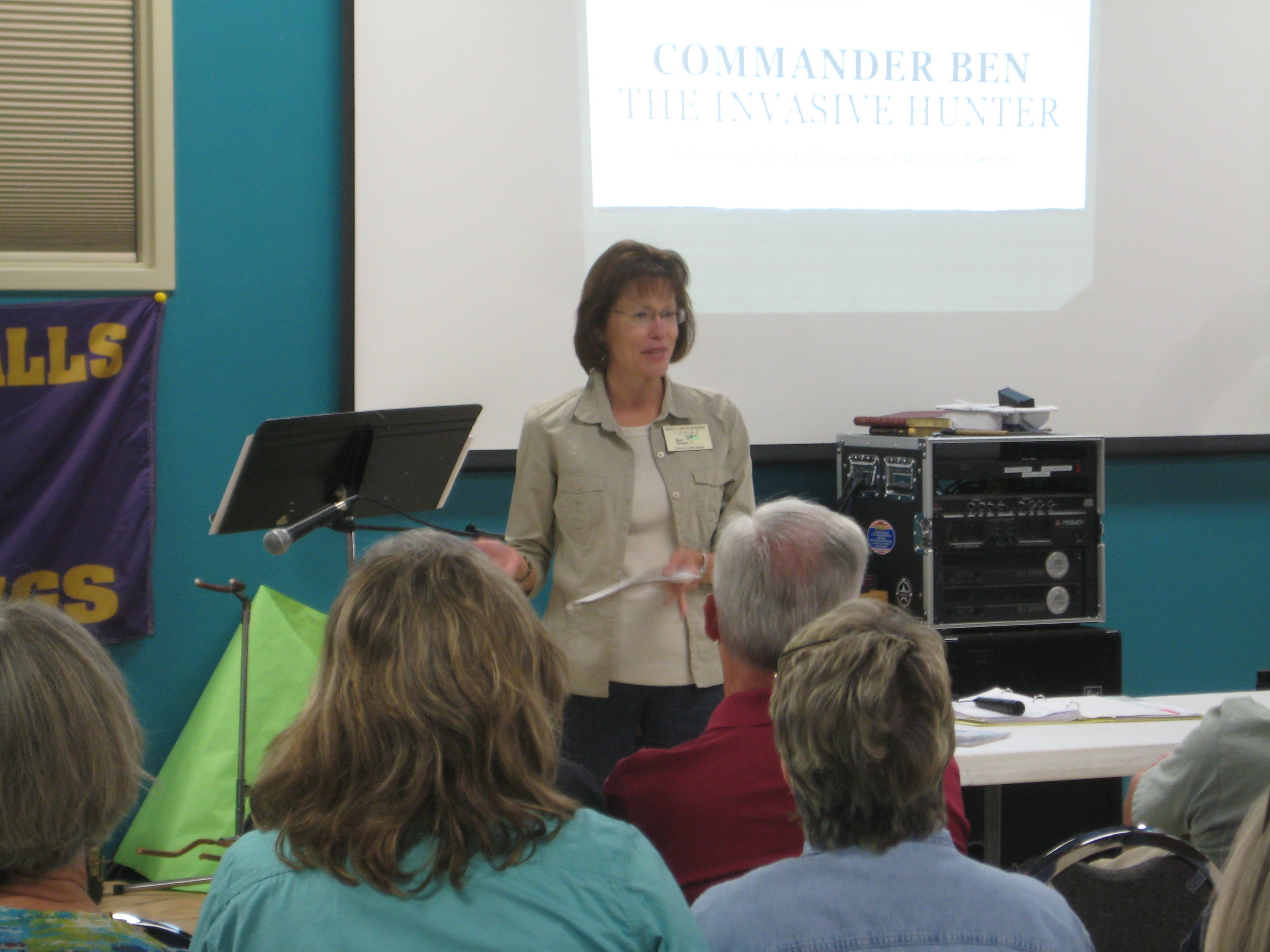
When it was time to start, everyone quieted down and Miss Sheryl gave me a great introduction.

Miss Sheryl Smith-Rogers introduces Commander Ben to the Highland Lakes Chapter of the Texas Master Naturalist

During my presentation, I talked about:

  • How I got started as Commander Ben – the Invasive Hunter
  • What invasive species are
  • Some examples of common invasive plants in Central Texas
  • How I fight invasives, and
  • Why I started the Invasive Hunter Academy.

Then I showed the group three videos from my “Battles with Invasive Species” series:

All the videos got a great reception, but I think everyone especially enjoyed seeing the grumpy scientist in the Amazing Invasive Hunter Man.

I ended my presentation by sharing with the group some of my experiences with dyslexia, and the technologies that I use to write my blog and make my videos. Plus, I gave them a glimpse into what’s next for Commander Ben: Working more with invasives, dyslexia, and high school!

Everyone loves stickers

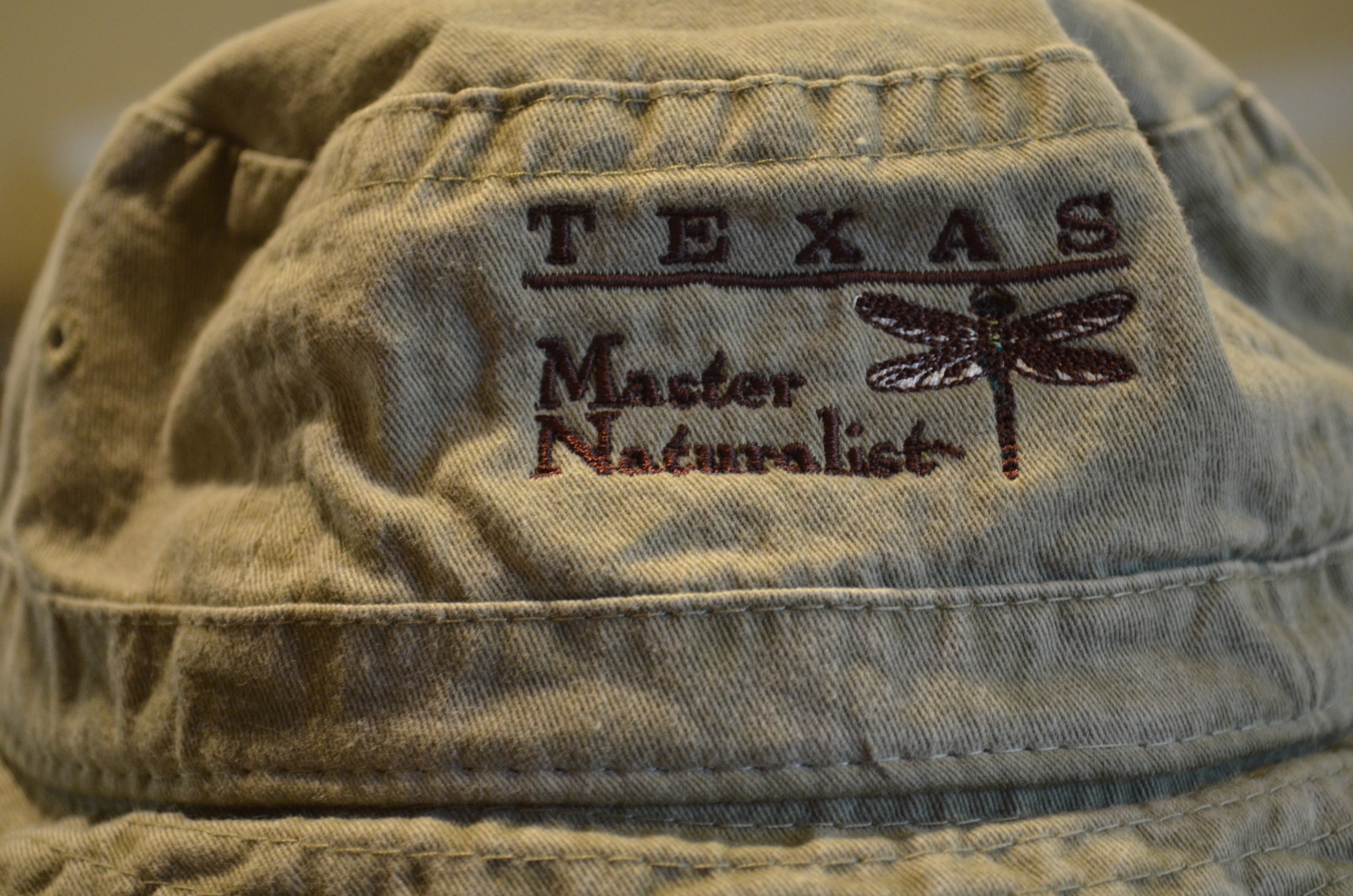
When I finished, everyone applauded and then Miss Linda O’Nan, vice president of the group, presented me with a goodie bag including a great Texas Master Naturalist hat! I also got to meet Miss Fredi Franki, president of the group.

Great goodie bag! Thank you!

Love the hat! 🙂

Commander Ben and Linda O’Nan, Vice President of the Highland Lakes Chapter of the Texas Master Naturalist

Commander Ben and Fredi Franki, President of the Highland Lakes Chapter of the Texas Master Naturalist

After my presentation, I chatted with all the master naturalists as they came and looked at the Invasive Hunter Academy stuff I had brought along with me. I noticed even the adults loved the stickers. Who doesn’t love stickers!

Thanks to Miss Sheryl for the great blog post of the event, Commander Ben Enlightens Us.  Be sure to check it out.  Miss Sheryl has a fantastic nature blog!

Many thanks to all the Highland Lakes Chapter Texas Master Naturalists! I had a great day and look forward to seeing you all again…maybe out in the field!

Your friend,
Ben

4 Comments

Filed under Apple, Bastard Cabbage, Dr. Jay Famiglietti, Dyslexia, Highland Lakes Chapter, Invasive Hunter, Invasive Hunter Academy, Invasive Species, iPad, Japanese honeysuckle, Keynote, Malta star-thistle, Marble Falls, Mr. Darrell Hutchinson, Sheryl Smith-Rodgers, Texas Master Naturalists

If You Have Dyslexia, Make The iPad or the iPhone Speak

“Speak Selection” Function on the iPad

Many thanks to my fantastic readers for the outpouring of support about my dyslexia posts!

Over the last few days, I’ve received some emails with technology questions so I wanted to take the chance to answer them here on my blog.

Today, I want to share a short tutorial about how to make the iPad or the iPhone “speak”. This function is called “Speak Selection” and is a great text reader function for anyone who has dyslexia.

“Speak Selection” can be easily accessed by clicking on the “Settings” App icon.

The “Settings” App Icon on the iPad Screen

For me, as someone who does have dyslexia, being able to have a good text reader is essential.  I use a text reader tool on my laptop (I’ll talk about that another day), the iPad and the iPhone.

It really is as easy as 1, 2, 3.

Turn on Speak Selection for the iPad

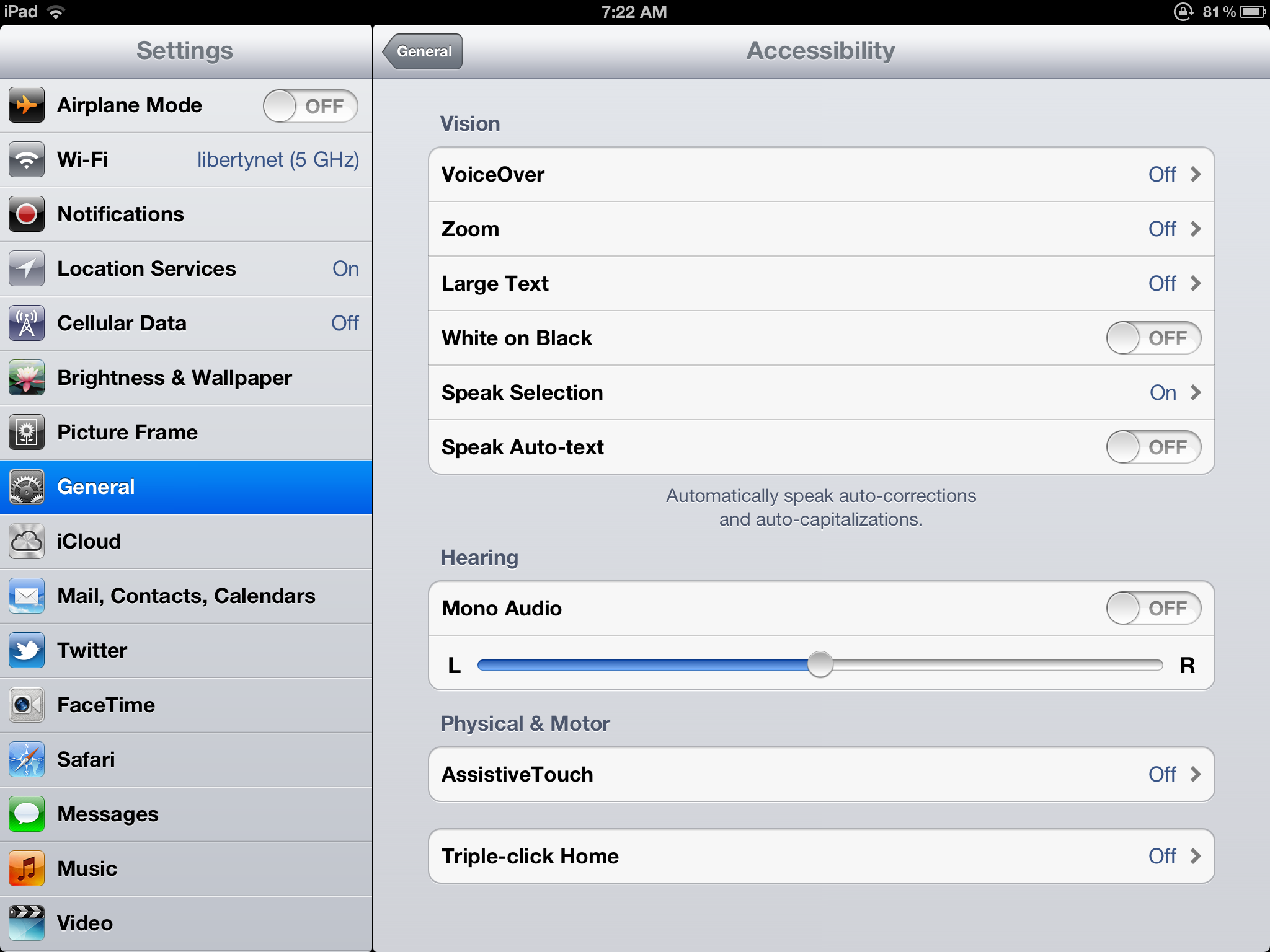
First, tap on the Accessibility bar.

Tap on the “Accessibility” Bar within “Settings” on the iPad

Second, tap on the “Speak Selection” bar.

Tap on the “Speech Selection” Bar on the iPad Screen

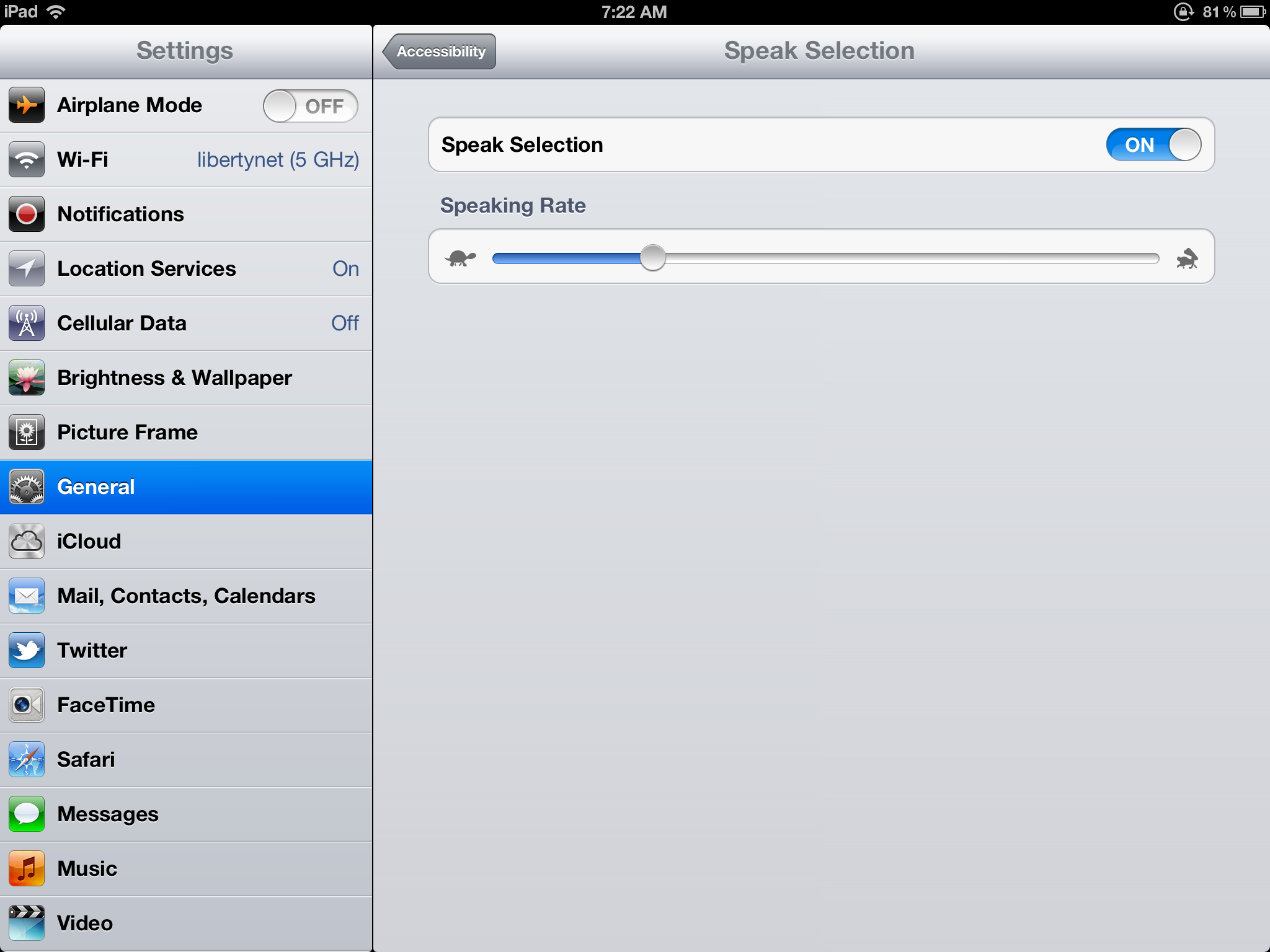
Third, after tapping on the “Speak Selection” bar, tap on the “OFF” icon to turn Speak Selection “ON”. Next, adjust the “Speaking Rate” at which you want the voice to speak – slow is to the left (the turtle icon) and fast is to the right (the hare icon).

I like to have my iPad read a bit on the faster side.  I can’t really say why, except for the fact that my brain seems to be able to process it easily.  Maybe it’s  just had lots of practice processing the spoken word from listening to so many wonderful books all these years.   Thanks Learning Ally!

Tap on the “OFF” icon to turn Speak Selection “ON”. Next, adjust the “Speaking Rate” on the iPad screen.

And now you’re done.  You’re iPad should be able to speak to you anytime you want. 😉

When you want to have your iPad speak to you, just highlight the text you want to read and when the screen instruction appears to “copy” or “speak” just tap on “speak”. That’s it!

Just highlight the text you want to read and then tap on “Speak”.

Turn on Speak Selection for the iPhone

When it comes to activating the “Speak Selection” function on the iPhone, it’s as equally easy as it is on the iPad.  Again, it’s just 1, 2, 3.

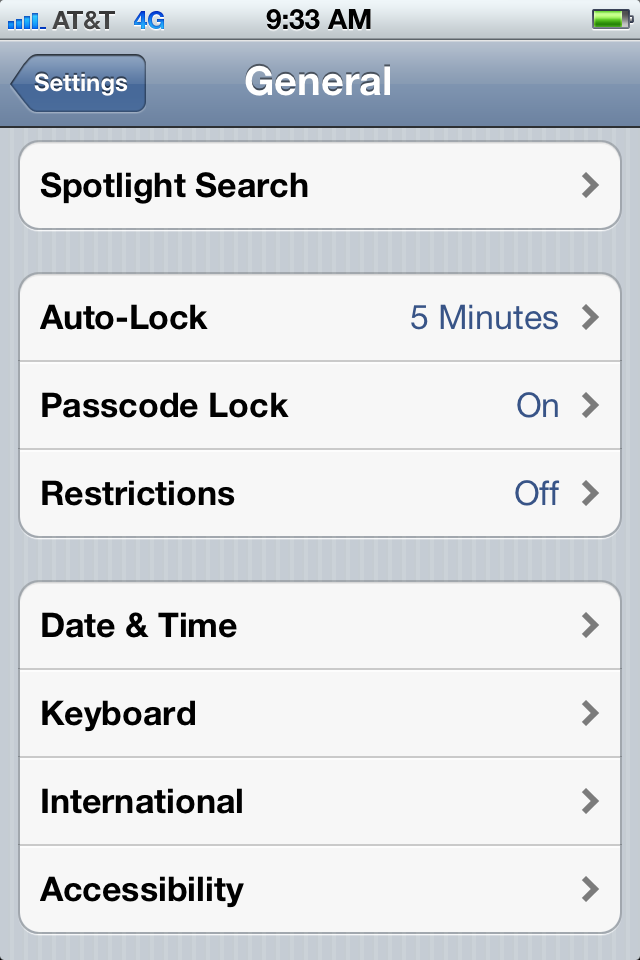
First, tap on the “Settings” icon app on the iPhone screen and then tap on the “Accessibility” bar within the Settings app.

Tap on the “Accessibility” bar on the iPhone screen within the “Settings” App.

Second, tap on the “Speak Selection” bar.

Tap on the “Speak Selection” Bar on the iPhone screen.

Third, after tapping on the “Speak Selection” bar, tap on the “OFF” icon to turn Speak Selection “ON”. Next, adjust the “Speaking Rate” at which you want the voice to speak.  As with the iPad, it’s the same on the iPhone – slow is to the left (the turtle icon) and fast is to the right (the hare icon).

Tap on OFF Button to turn “Speak Selection” ON, then adjust the reading speed.

Highlight the text you want to read on the iPhone, then tap on “Speak”.

And 0nce again, now you’re done.  You’re iPhone will speak to you anytime you want. 😉  All you have to do is highlight the text you want to read and when the screen instruction appears to “copy” or “speak” just tap on “speak”. You’re all set!

Be sure to visit the Dyslexia page of my blog to read my other posts including:

Your friend,
Ben

4 Comments

Filed under Dyslexia, iPad, iPad Speak Selection, iPad Tutorials, iPhone Speak Selection